
Puddleleaf has a free online colouring studio that runs in your web browser. Children can colour pictures with a finger, a stylus or a mouse, on a phone, tablet or computer, with nothing to download and no sign-up. This guide explains, in general terms, how it works, how saving works, and how to add the pictures from a book you have bought. The Studio is updated from time to time, so the exact buttons may look a little different from the descriptions here.
Opening the Studio
Go to puddleleafstudio.com/studio/ in any up-to-date browser. A small set of garden pictures is included free, with no account and no purchase. Pick a picture and start colouring.
For the smoothest experience, use a tablet with a stylus or a computer with a mouse. Phones work too, but the screen is small for detailed pictures, so zooming in helps.
The main tools
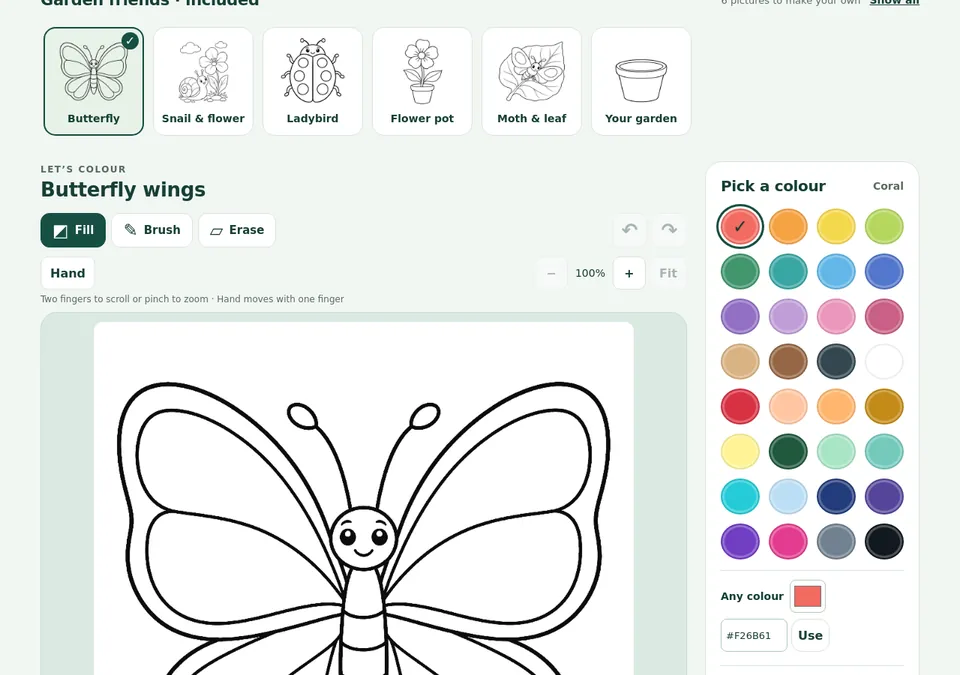
- Fill: tap or click an enclosed area to fill it with the chosen colour. This is the easiest tool for younger children and gives a neat result quickly.
- Brush: draw freely. The Studio offers different brush styles that feel like a marker, a crayon or a pencil, in several sizes.
- Erase: removes colour without removing the black outlines.
- Undo and redo: step backwards or forwards through recent changes. Very handy for small fingers.
- Zoom and move: pinch with two fingers (or use the zoom buttons) to get closer to small areas, and use the hand tool to move around without drawing.
A good first lesson for a 4- or 5-year-old: choose a colour, use Fill on the big shapes, then switch to Brush to add their own details such as spots, stripes or a sun.
Saving work
Colouring is saved automatically in the browser on the device you are using. It is not stored in an online account and does not sync to another phone or tablet. That has a few practical consequences:
- Use the same device and the same browser to come back to a picture.
- Private or incognito browsing, clearing browser data, or running out of storage can remove saved work.
- To keep a finished picture, use the Studio’s option to save it as a PNG image. You can then print it, share it with family, or keep it in your photos.
The Studio does not ask for a child’s name, email or account. Its own page explains its privacy approach in more detail for grown-ups.
Adding a book you bought
Most Puddleleaf colouring books include a Studio companion: a file ending in .colourbook that holds the book’s pictures for on-screen colouring. To add it:
- Download your purchase from Gumroad and unzip (extract) the package. On a phone or tablet, open the ZIP in your Files or Downloads app first.
- Open the Studio and choose the option to load a bought book.
- Select the
.colourbookfile from your download. The book appears on your shelf in the Studio.
A few things to know:
- The Studio opens
.colourbookcompanion files only. It cannot open PDFs, ZIP files or ordinary images. - The companion holds the pictures. For story books, the full read-aloud story and drawing activities are in the PDFs, not in the companion.
- The book stays on your device; it is not uploaded. Keep your original download as a backup in case browser data is cleared.
Each product page lists exactly what its companion contains, for example a 20-picture companion for Boats and Ships or an 8-picture companion for The One Red Crayon.
Using the Studio with a colour guide
Book companions contain the outline pictures. If your child wants to follow the book’s colour guide, open the guide PDF on another device, or print the guide page and keep it next to the screen. See how to use colour guides with kids aged 4–8.
Offline use
The Studio can prepare itself for offline colouring after you have opened it online. Offline reopening depends on your browser and what it has stored, and it has not been verified on every device. Before relying on it for a flight or a trip, open it online first, check your pictures load, and then test it with the device offline.
Screen time and balance
On-screen colouring is still screen time. Australian guidelines recommend no more than 1 hour a day of sedentary screen time for children aged 2 to 5, and no more than 2 hours of recreational screen time for children aged 5 to 17 (Department of Health, birth to 5; 5 to 17). The Studio works well as a short, focused activity, alongside printed pages. For more ideas away from screens, read our screen-free quiet time guide.
Troubleshooting
- My picture disappeared. Check you are using the same browser on the same device, and not a private window. If browser data was cleared, saved colouring may be gone; reload the book from your original
.colourbookfile. - The file will not load. Make sure you unzipped the download and chose the file ending in
.colourbook, not the PDF or the ZIP. - Fill colours more than I expected. Fill colours one enclosed area. If an outline has a small gap, colour can spread; use Undo, then Brush for that area.
- Accidental marks while scrolling. Switch to the hand tool to move around, then back to Fill or Brush to colour.
Prefer paper? Every book also comes as printable A4 and US Letter PDFs. Start with our free colouring pages and printing guide.